The
College recommends and supports Macromedia Dreamweaver
as the preferred tool for all Web editing because
it offers the best balance between sophistication
and ease of use. If Dreamweaver is not installed on
your office computer, you may request installation
by contacting the CITS
Helpdesk.
| Please
follow the below steps even if you have previously
used Dreamweaver. Some of the early users were
taught a different setup configuration, which
is less effective than the one described below. |
1.
Open the Site Manager
Launch
the Dreamweaver program.
Then, go to the Site pull-down menu and select
"Site Files"
2. Define the
Skidmore Site
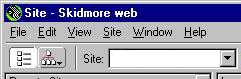 Click
on the entry box next to the word "Site"
in the second tool strip, and then choose "Define
Sites" from the pop-down menu.
Click
on the entry box next to the word "Site"
in the second tool strip, and then choose "Define
Sites" from the pop-down menu.
Then click on "New" to define a
new site.
The following site definition window appears:
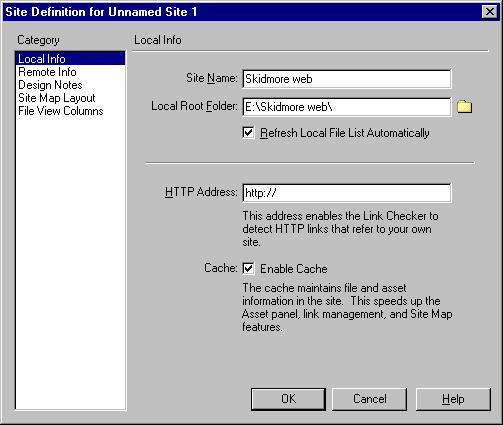
You may enter anything for the Site Name. This is
merely your label to distinguish this site from other
personal sites that you may define.
The local root folder is the local computer folder
that will be used to store your working copies of
the files. This should be a new and empty folder.
You can click the folder icon to browse your disk
and select a folder.
Now, click on "Remote Info"
in the Category box at the left.

Choose "FTP" as the access method.
This causes the other entry boxes to appear.
Enter the "FTP Host" and "Host
Directory" exactly as it appears above.
Enter your username in the "Login"
box.
You should enter your Password ONLY if you are confident
that your computer is secure. If you leave it blank,
Dreamweaver will prompt you for your password whenever
it is needed.
You are now finished configuring the site manager.
Click OK as needed to close the windows.



